



How-to Guide
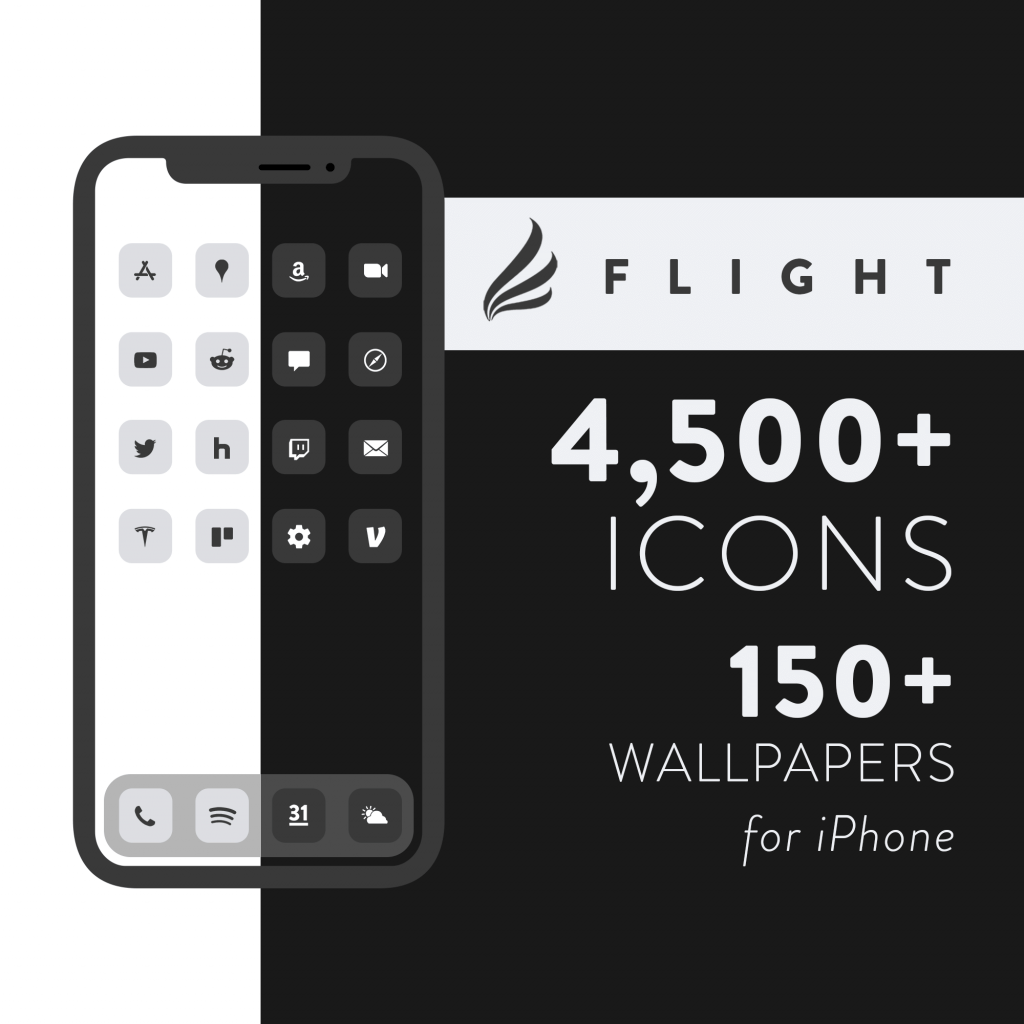
Flight – Sample Icon Pack for iOS, macOS, & Windows
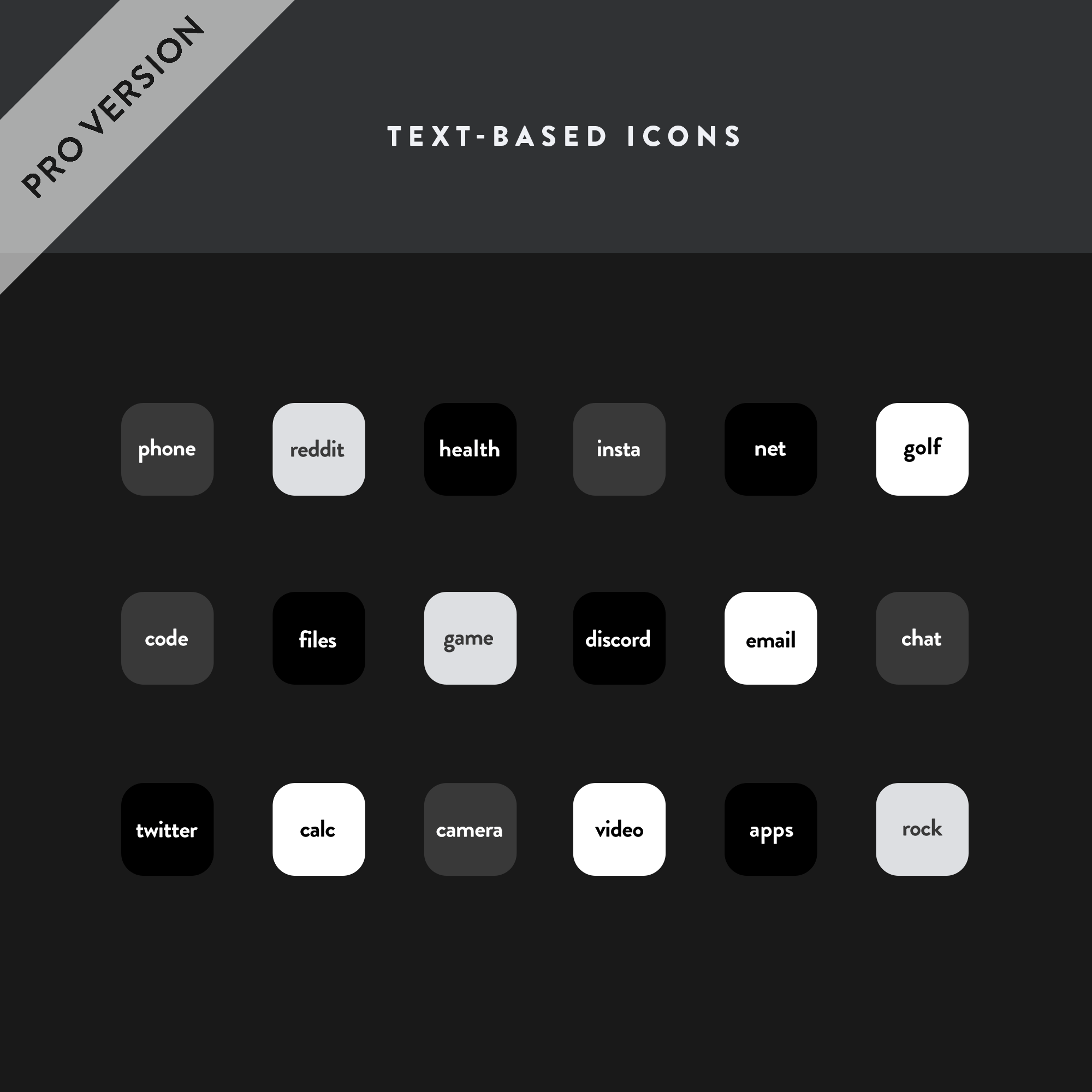
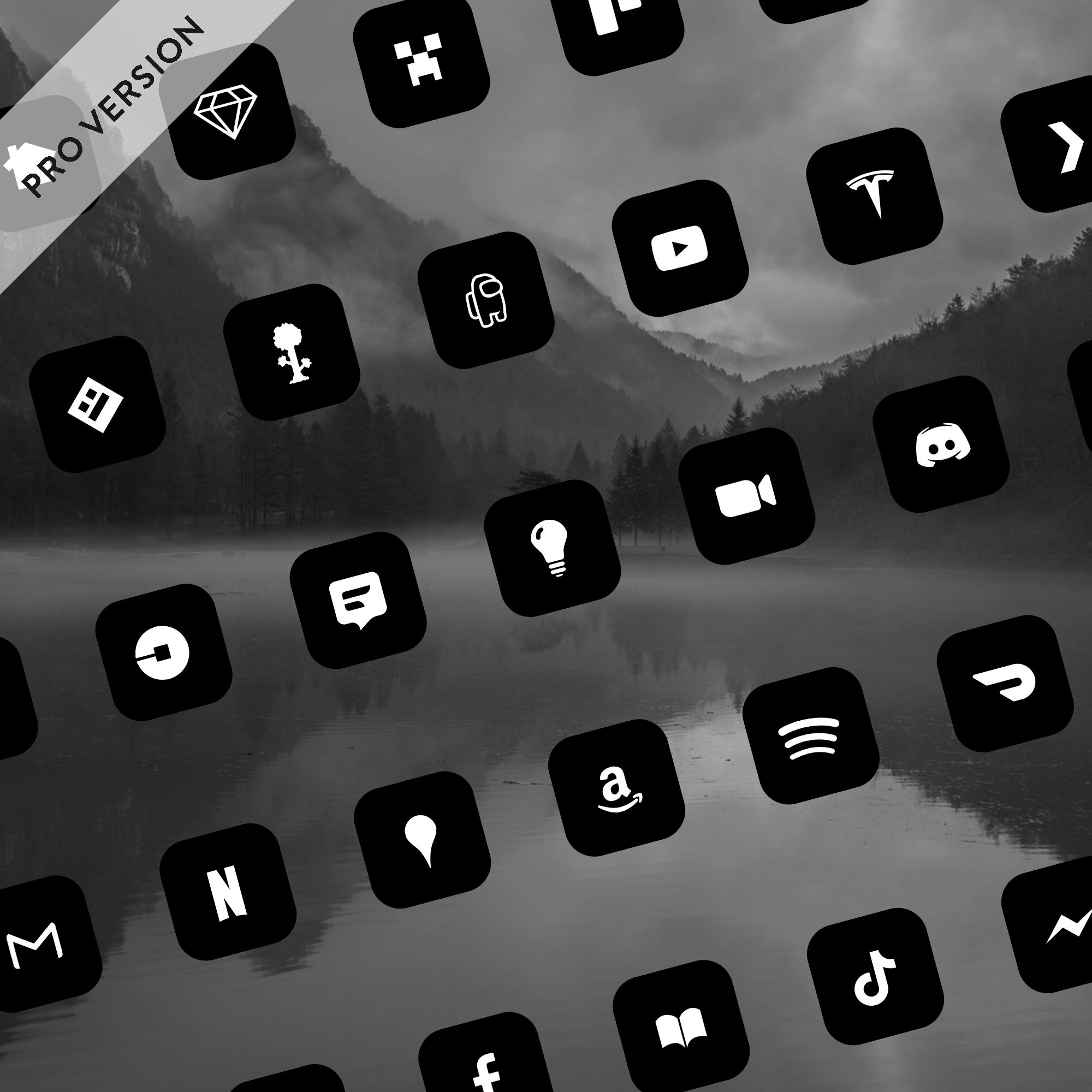
- 13 minimalist black and white icons.
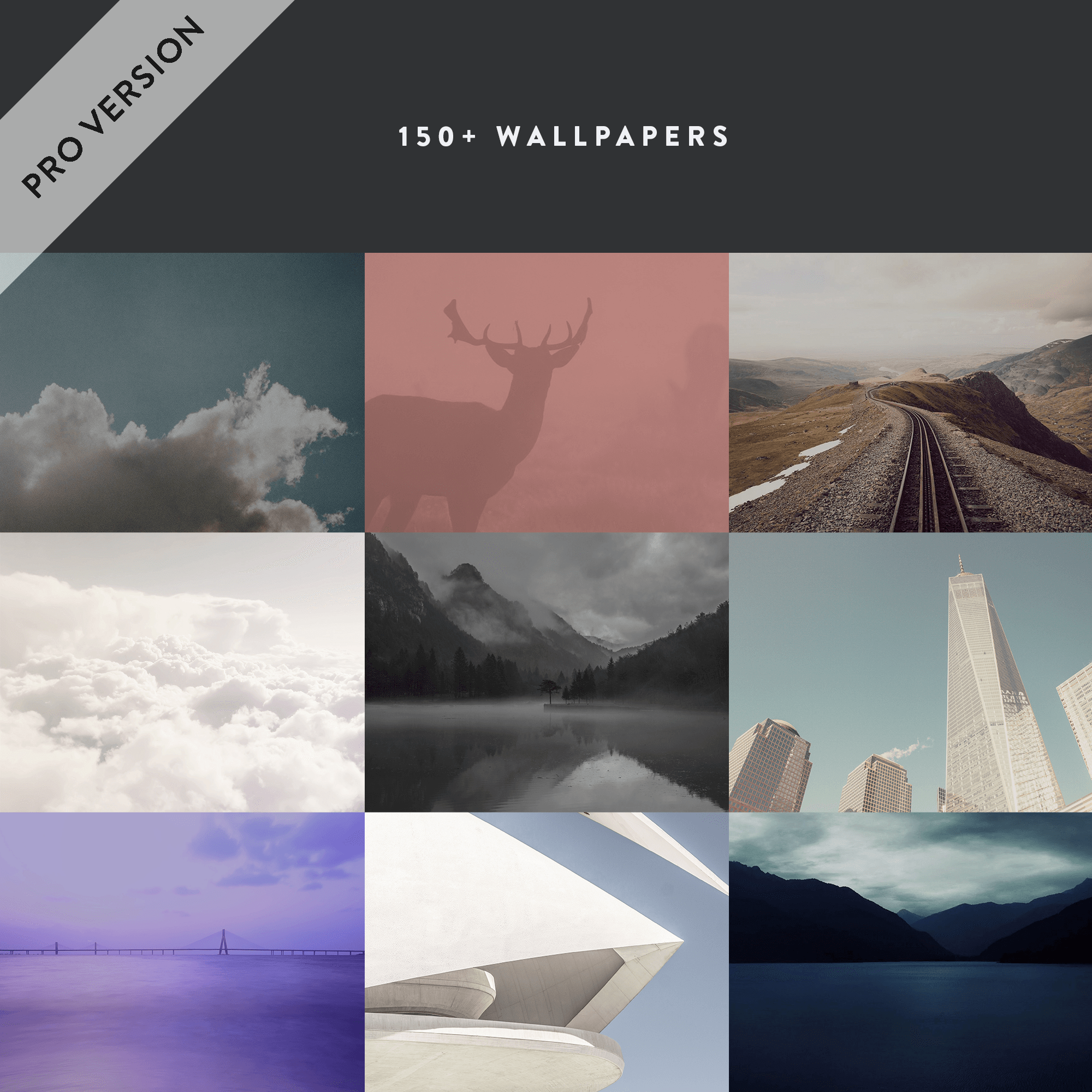
- 40 wallpapers.
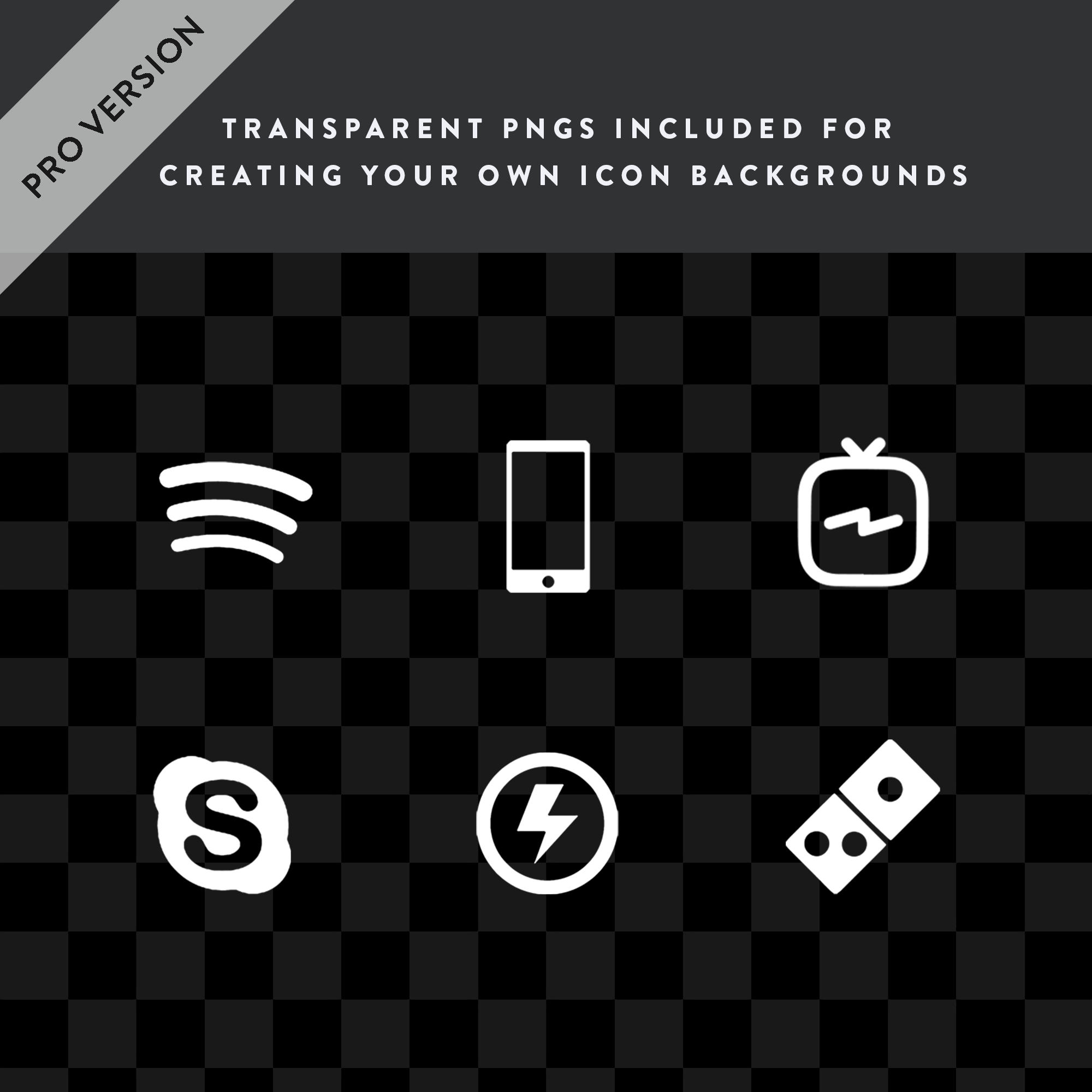
- Transparent PNGs included if you’d like to create your own icon backgrounds.
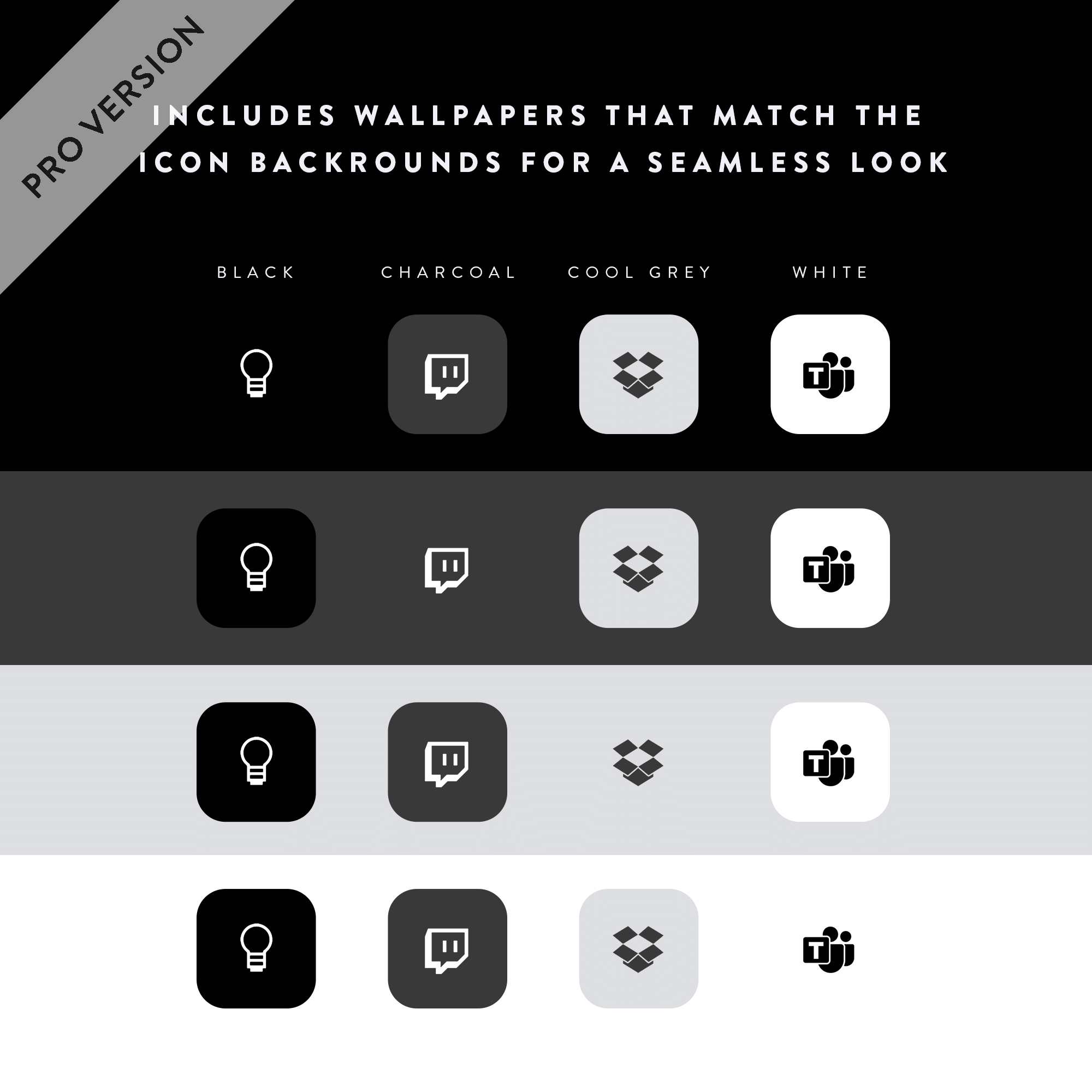
- 4 background colors included; black, charcoal, pearl, & white.
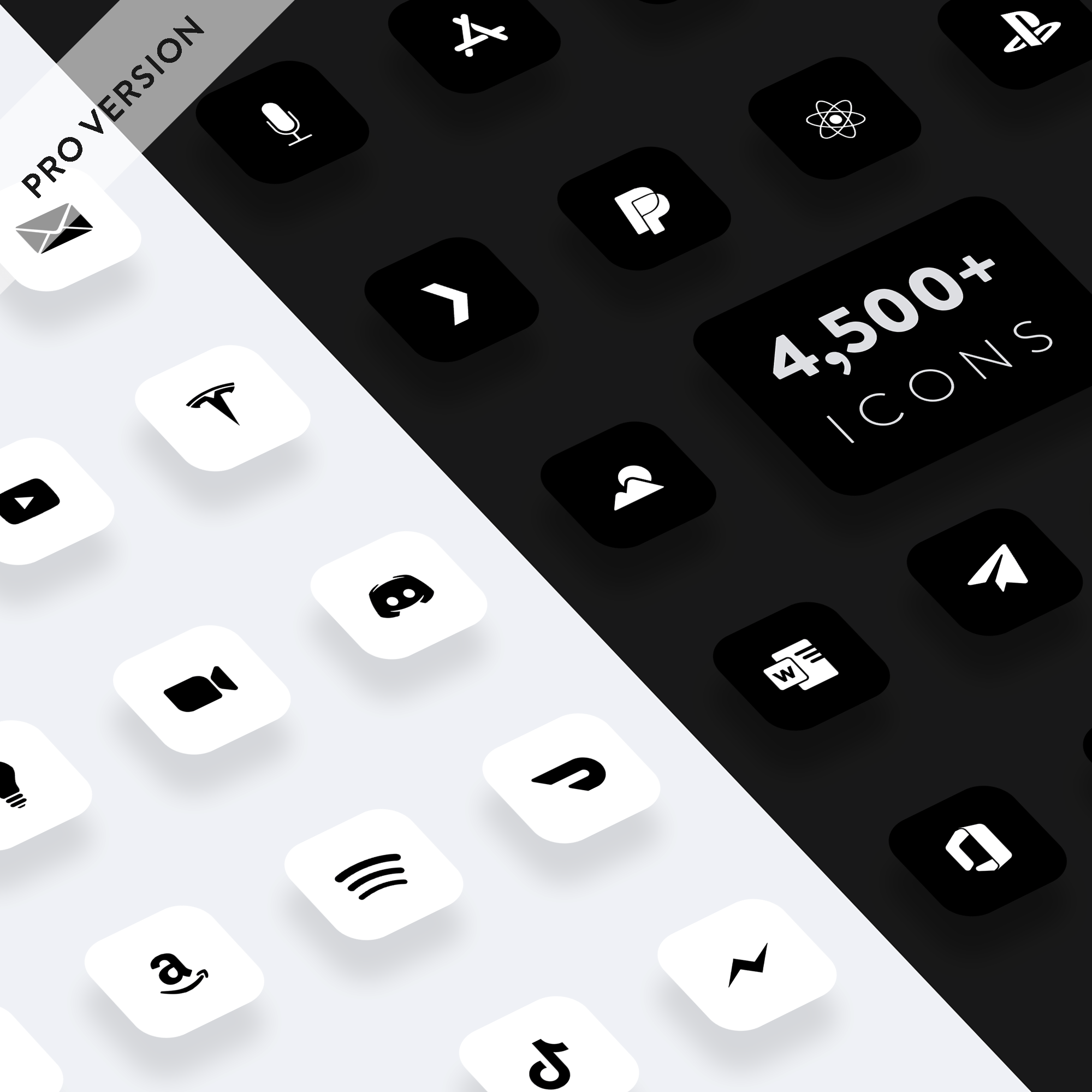
- Full version has transparent white & black PNG pack plus the 4 pre-made sets for a total of over 27,000 icons!
- Includes dark and light wallpapers that match the icon backgrounds for a seamless look.
Full Version Includes:







FAQs
How do I use these?
How do I request new icons?
If you have any requests, feel free to contact me and let me know what you’d like to see in a future update.
Files missing?
Each zip file contains over 5,000 icons. If you’re only seeing a portion of that, there could be a couple of reasons why: Either your download was interrupted and only a portion of the files were obtained, or your device is still in the process of unzipping. It can take a couple minutes to unzip all 5,000 files. If you still don’t see all 5,000+ icons after a few minutes, you might need to re-download the zip file.
Unsupported file type?
Apple restricts opening zip files on some devices based on your user settings.
Tap the 3 dot menu > Open in > Save to Files
Once the file is in your Files app, you should be able to access them. Also, use “Choose File” when creating a shortcut in the “Shortcuts” app.
Don't have permission to open the file?
You’ll see this when your phone storage(not iCloud storage) is low on space. Try freeing up some space or restarting your device.
Getting a 'helper application' error?
A device restart should fix this. This could be also be caused by low storage space.
Is there an Android version?
Yes! You can get my Android themes here.
Personal-Use License Info
Icons © Nate Wren Design.
Licensed for personal use only. Commercial use and redistribution are strictly prohibited.