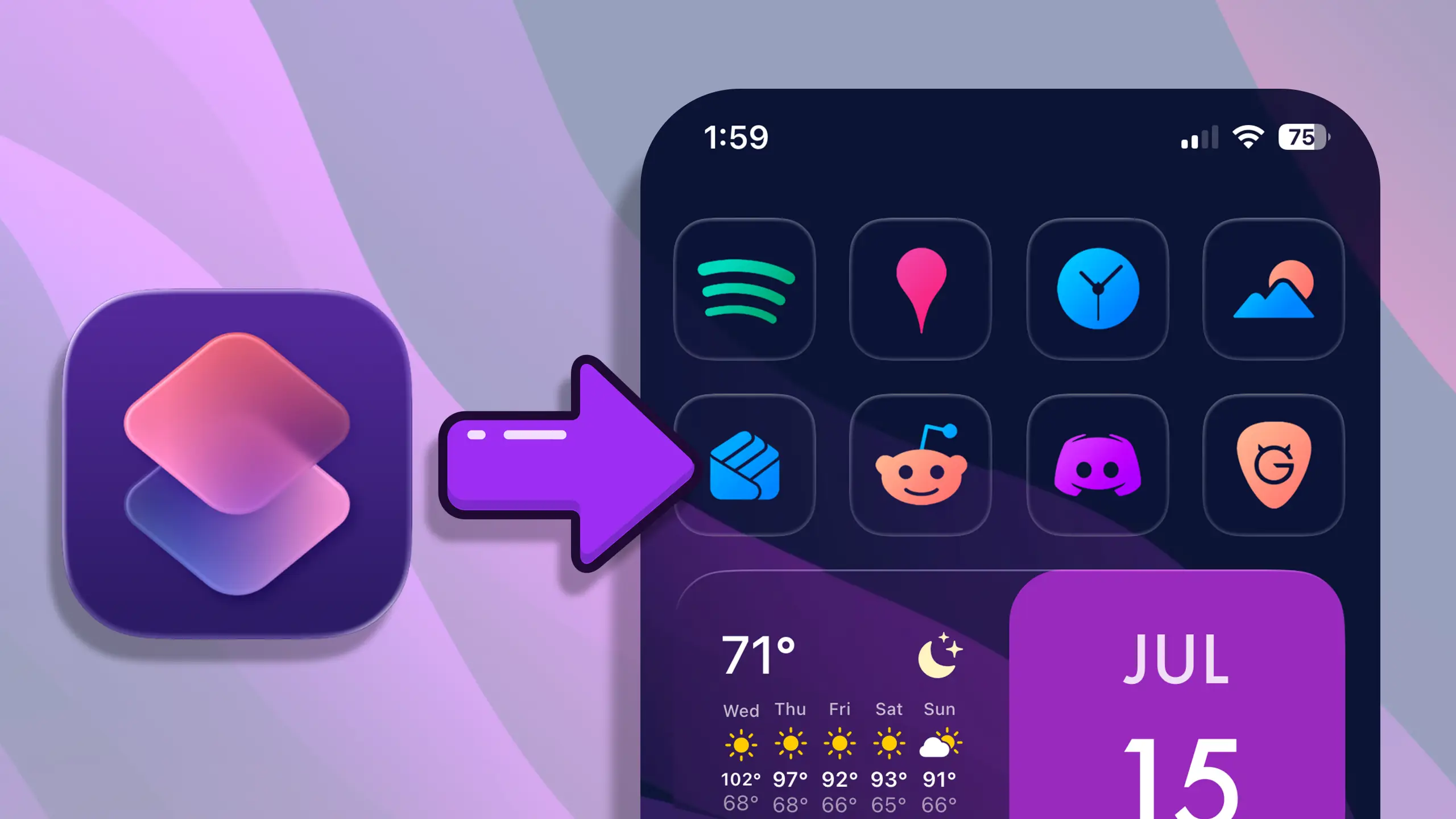
A custom home screen is one of the fastest ways to make your iPhone feel like yours, and you do not need a jailbreak or a paid app to do it. This guide shows you exactly how to change your app icons on iPhone using Apple’s free Shortcuts app, step by step.
It works on iOS 14 and every version since, including iOS 18. We start with a single icon, then cover doing a whole home screen, hiding the app names, adding matching wallpaper and widgets, and where to get ready made icon packs so you are not designing 30 icons by hand.
Here’s a full walkthrough video using the Apple Shortcuts app:
What you will need
- An iPhone running iOS 14 or later (this includes iOS 18)
- The free Shortcuts app. It comes pre-installed; if you deleted it, get it again from the App Store
- A set of icon images. Make your own, or start with a ready made iPhone icon pack
- About 10 minutes for a full home screen
How to change one app icon
Here is the core method. Once you have done it once, the rest is just repetition.
- Open the Shortcuts app and tap the + in the top right to create a new shortcut.
- Tap Add Action, search for Open App, and select it.
- Tap App in the action and choose the app you want a new icon for (for example, Instagram).
- Tap the share icon at the bottom, then choose Add to Home Screen.
- Tap the icon thumbnail next to the name, choose Choose Photo or Choose File, and pick your custom icon image.
- Type the name you want under the icon (see the tip below on hiding it), then tap Add.
Your new icon now sits on the home screen. Repeat for each app you want to customize.
How to customize your whole home screen
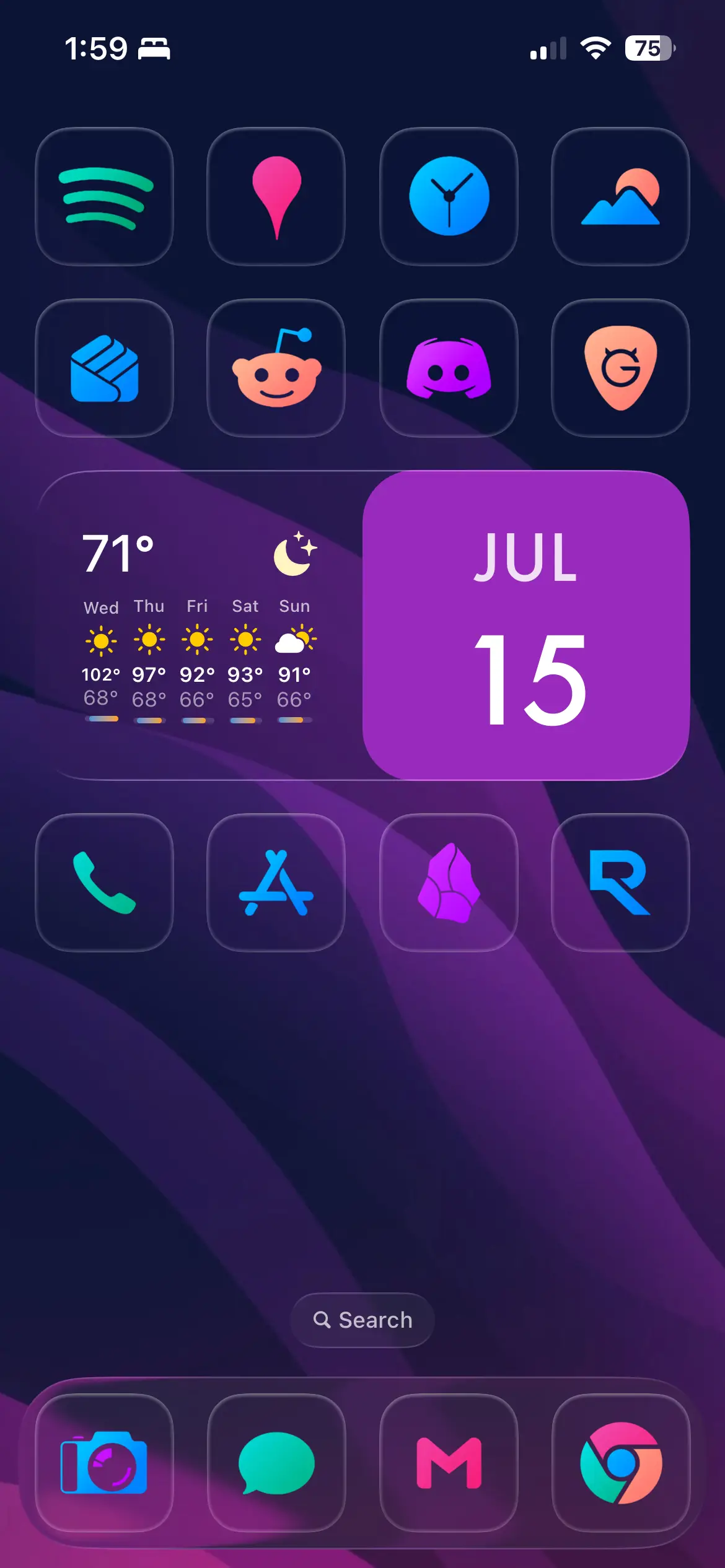
You do not have to change every app. A clean look usually comes from customizing the 15 to 25 apps you actually use, then hiding the rest.
- Move the original apps out of the way. Long press an app, choose Remove from Home Screen (not Delete). It stays in your App Library while your custom shortcut takes its place.
- Match the order. Put your new icons in the same grid spots you are used to so muscle memory still works.
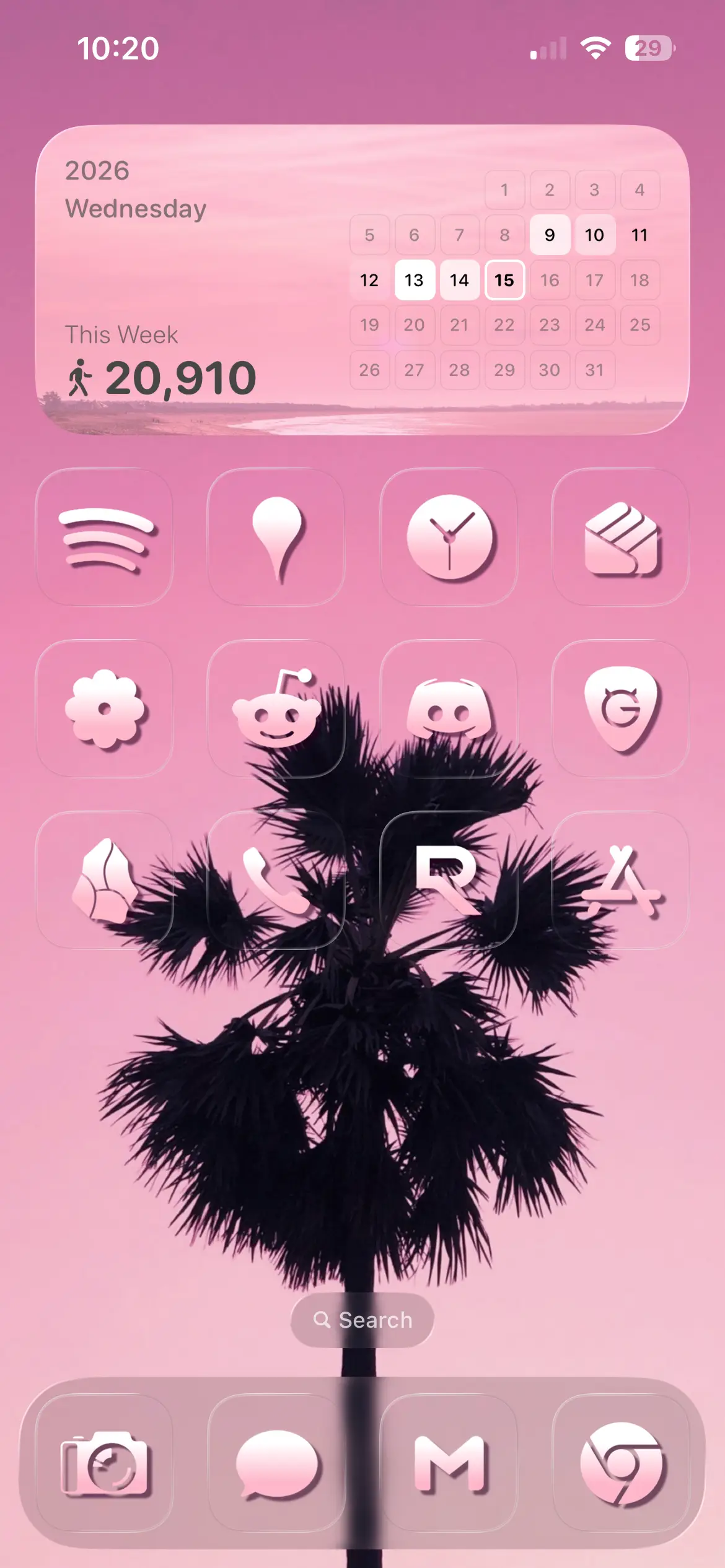
- Pick one aesthetic and commit. A single consistent style looks far better than a mix, which is where a matched icon pack saves you real time.
How to hide the app names under custom icons
The labels under each shortcut can break a clean look. To hide them, when you name the shortcut in step 6 above, delete the text and enter a single blank space instead of a word. The label disappears while the icon stays.
If a plain space will not save, paste an invisible character. Most people just use one space, which works on current iOS versions.
Finish the look with wallpaper and widgets
Custom icons are only half of an aesthetic home screen. Two quick additions pull it together:
- Matching wallpaper. Pick a wallpaper in the same palette as your icons. Many icon packs include coordinated wallpapers.
- Widgets. Long press the home screen, tap +, and add a clock, calendar, or Photos widget. Widget stacks keep several in one slot.
What about the "opening in Shortcuts" banner?
On older versions of iOS, tapping a custom icon briefly flashed a banner before the app opened. On iOS 16 and later this is gone for home screen shortcuts, so apps open instantly. If you are on an older version and the banner bothers you, updating iOS is the simplest fix.
Where to get iPhone icon packs
Making a whole set of icons by hand takes hours. A ready made pack gives you a matched set (often 5,000+ icons plus wallpapers) that installs in minutes, and the packs work on iPhone, iPad, Mac and Windows. Here are the styles, each linked to its pack:
- Minimalist black and white: Flight and Lines
- Colorful: Chroma, or Lines Chroma for colorful line icons
- Beige and neutral: Glam
- Gold: Gold Leaf
- Retro 80s: Rad Pack
- 3D: The Grid
- Hacker terminal green: Terminal Green
Want to try before you buy? Grab the free Flight sample pack and test the whole process end to end, or browse all the icon packs.
Troubleshooting and FAQ
My icon looks blurry. Use a high resolution PNG, ideally 512 by 512 pixels or larger. Small images get stretched.
The icon disappeared. Do not delete the shortcut it points to. Removing the shortcut removes the icon.
Can I change icons without Shortcuts? There are third party apps, but Shortcuts is free, built in, and keeps ads and subscriptions out of your home screen.
Does this slow down my iPhone? No. The shortcut simply opens the real app.
Make your home screen yours
That is everything you need to change app icons on your iPhone and build a home screen you actually enjoy looking at. Pick a style, install a pack, and the whole thing is done over a coffee.
Browse the icon packs and start with the look you love.